

Estimated reading time: 18 minutes
I had to build an Azure DevOps pipeline to deploy a Power Platform solution. It’s the kind of task I’ve done before, and I expected the first step to take a few minutes. A pipeline can’t deploy anything until it can sign in, so I started there: Project settings, Service connections, New service connection, Power Platform.
Then I stopped. The dialog wanted a decision before it would show me a single useful field:
- Application Id and client secret
- Azure Managed Identity
- Workload Identity federation (preview)


It offered three authentication methods: Application Id and client secret, Azure Managed Identity and Workload Identity federation (preview). I clicked through them. The first one asked for a secret. The second asked for almost nothing. The third carried the word “preview”, which isn’t what you want to see on a production pipeline.
I wanted to make this decision once and get it right. So I went looking for the answer, and it took a lot longer than a few minutes. This is what I found, in the order I found it.

The docs didn’t match the dialog
My first stop was Microsoft’s Build Tools documentation, and that’s where the story got strange. Surprisingly, the page lists different options from the ones on my screen.
It recommends workload identity federation, it covers client secrets, and it adds username and password, which isn’t in this dialog at all. Azure Managed Identity, meanwhile, isn’t on the page. So one of the three options in front of me simply wasn’t documented there.
So I stopped reading the docs and opened the source. The dialog comes from one file in the Build Tools repository, service-connections.json, and it settled the first question straight away. All three options are real, and they’re all one connection type, powerplatform-spn, with three authentication schemes.
That also meant the choice wouldn’t touch my YAML. Whichever option I picked, the task would look the same:
- task: PowerPlatformWhoAmi@2
  inputs:
    authenticationType: PowerPlatformSPN
    PowerPlatformSPN: 'my-service-connection'
The task reference still describes PowerPlatformSPN as a “Service Principal/client secret” connection, but that’s out of date. Instead, the value covers all three.
Some things wouldn’t change either. Every option ends in pac auth create, followed by pac commands against Dataverse. Every option also needs a Dataverse application user in each target environment, with a role that can import solutions. For example, the Build Tools page asks for System Administrator.
So if the YAML and the application user were the same, what was I actually choosing?

The question that changed the decision
I started out asking where the credential lives. However, that turned out to be the wrong question. The better one is who decides the identity.
The answer was in the CLI wrapper’s authenticate.ts, which builds the sign-in command for each option:
| Option | Arguments passed to pac auth create |
| Client secret | --tenant, --applicationId, --clientSecret |
| Azure Managed Identity | --managedIdentity |
| Workload Identity federation | --applicationId, --tenant, --azureDevOpsFederated |
Look at the second row. It passes no tenant, no application ID and no way to select an identity. That explained the nearly empty form I’d seen in the dialog: there was nothing for it to collect. The connection doesn’t know who it is, so the agent running the job has to supply the answer.
| Option | Identity decided by | Proof of identity |
| Application Id and client secret | The service connection | A long-lived secret stored in Azure DevOps |
| Azure Managed Identity | The agent running the job | Azure’s token service on that agent |
| Workload Identity federation | The service connection | A short-lived Azure DevOps token, exchanged with Entra |
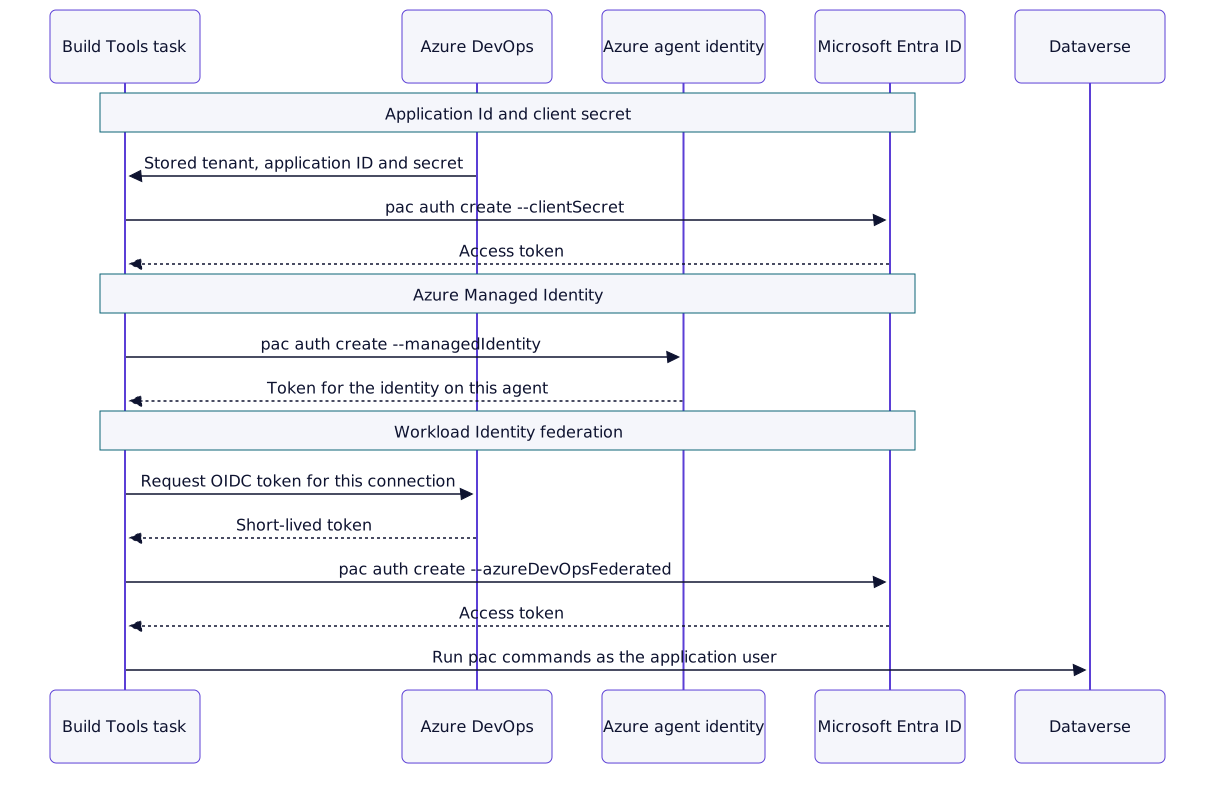
With that in mind, I went through the options one at a time.
Option one: the client secret I could set up in minutes
Initially, the client secret was the obvious path. It works on any agent, every Build Tools task supports it, and the pac admin create-service-principal command registers the application, creates the secret and adds the application user in one step:
pac admin create-service-principal --environment <environment id>I could have finished in minutes and moved on. However, that convenience hides a few things I’d be signing up for.
First, the role defaults to System Administrator. Second, the command shows the secret once, so someone has to copy it into the service connection by hand. From then on, it sits in Azure DevOps and expires on a date that nobody is watching. When that day comes, the pipeline fails.
The secret also travels. The wrapper passes it to pac as an argument and sets PAC_CLI_SPN_SECRET in the environment. Build Tools masks the value in logs, and a comment in getCredentials.ts records that it previously appeared unmasked.
None of this makes a client secret wrong. Still, I didn’t want to build something new on the option with the most to manage, so I kept it as my fallback and moved on.
Option two: the managed identity and its empty form
The managed identity looked like the perfect answer. There’s no secret and nothing to rotate, and the form barely asks a question. It arrived in Build Tools 2.0.13, and Microsoft described it in a December 2022 blog post as a feature for self-hosted agent pools.
That last phrase was the first catch.
It needs an agent of its own
Microsoft-hosted agents can’t use this option. Microsoft’s troubleshooting page says that they don’t support managed identities, so you need a self-hosted agent on an Azure VM. The blog post uses a VM scale set:
- Create a VM scale set and assign it a system- or user-assigned managed identity.
- Map an Azure DevOps agent pool to that scale set.
- Create the service connection with the environment URL.
- Add the identity to the environment as an application user, with a role.
- Point the pipeline at the new pool.
For step 4, enter the Application ID, not the name. The admin center asks for this explicitly for managed identities.
So the empty form wasn’t simplicity. The setup had simply moved somewhere else, and I’d now own an agent pool.
Managed DevOps Pools also accept a user-assigned identity.
The pool becomes the identity
This was the moment I took the option off my list for shared pools. The connection stores no identity, so the agent supplies it. As a result, a connection only works on the pool it was built for, and any job on that pool signs in as the same identity.
Picture one pool serving dev and production. The identity needs access to both, and the connection no longer separates them.
Two identities on one pool fail
Then I found issue #944. A user’s pipeline stopped signing in, although nothing had changed on the connection. The telemetry showed why:
Multiple user assigned identities exist, please specify the clientId / resourceId of the identity in the token request
The maintainer replied in 2024 that the tasks had no way to choose an identity, and the source still passes only --managedIdentity. The pac auth reference does document AZURE_CLIENT_ID for selecting one.
Azure DevOps also lists the equivalent option for Azure Resource Manager connections, agent-assigned managed identity, among those it doesn’t recommend. That guidance doesn’t cover Power Platform connections, but the design is the same.
Option three: federation and the word “preview”
That left the option I’d been avoiding. Workload identity federation gives you the separation of a client secret without a stored secret: the connection names the identity, and Azure DevOps proves who is asking at run time.
During the job, the task asks Azure DevOps for an OIDC token for that connection. pac then exchanges it with Entra, using a federated credential on the identity as the trust. Because nothing long-lived is stored, there’s nothing to rotate. It also works on Microsoft-hosted agents, and Microsoft’s tutorial runs it on windows-latest.
Setting it up
- Register an application in Entra and add it as an application user in the environment.
- Create the Power Platform service connection, and choose Workload Identity federation (preview).
- Enter the environment URL, the application’s client ID as Service Principal Id, and the Tenant ID.
- Save, then copy the Issuer and Subject identifier from the connection.
- On the application, open Certificates & secrets > Federated credentials > Add credential.
- Choose Other issuer, and paste both values.
The trap in the old instructions
If you search for help here, you’ll probably land on the maintainers’ 2024 announcement. It gives https://vstoken.dev.azure.com/<OrganizationID> and a subject starting sc://.
Don’t copy those. Commenters report that they no longer apply to new connections, which show https://login.microsoftonline.com/<tenant_id>/v2.0 and a subject starting /eid1/c/pub/. That also matches the issuer change for Azure connections. Issue #1212, titled “Workflow Identity Federation is broken”, is still open, yet its last comment puts the failure down to the old values.
So use the values Azure DevOps shows you on the connection, and ignore any format you find elsewhere.
Living with the preview label
The word that made me hesitate has an odd history. Microsoft’s docs recommend this option while the product still labels it preview. It arrived in 2024, and the label is still there in 2.0.158, released on 2026-10-09. A user asked in April 2026 whether it’s safe for production, and nobody had answered when I checked.
So this needs a deliberate decision. Some organizations don’t allow preview features in production pipelines, and that policy should decide the matter, whatever I say at the end of this story.
One credential per connection
There’s one limit to plan for. Each connection needs its own federated credential, because the subject identifies that connection. Since an application allows 20 federated credentials, a large estate needs more than one application.
The fourth option the dialog doesn’t mention
The most useful thing I found wasn’t in the dialog at all. Federation doesn’t require an app registration. The principal can be a user-assigned managed identity, which would mean no app registration, no secret and no self-hosted agent.
The 2.0.71 release note says the feature lets “Service Principals or Managed Identities” authenticate without a client secret. In issue #944, the maintainer adds that managed identities support federation “just as normal SPNs do”, and suggests this as the fix for the multiple identity failure.
I found no Microsoft walkthrough for it, so the likely steps are:
- Create a user-assigned managed identity, and note its client ID.
- Create the federated connection, using that client ID as Service Principal Id.
- On the identity, open Settings > Federated credentials, and add the issuer and subject.
- Add the identity to the environment as an application user, using its Application ID.
This suits teams that can’t create app registrations. Azure DevOps offers the same design for Azure connections for that exact reason.

What would break if I moved an existing pipeline
My pipeline was new, but most pipelines aren’t. Before recommending federation to anyone else, I checked what would stop an existing one from moving. The tasks keep working, but anything that expects a client secret won’t.
Set Connection Variables
PowerPlatformSetConnectionVariables@2 fails with federation. Issues #1101 and #1118 are open, and the first shows this error:
##[error]Error: LIB_EndpointAuthNotExist
The task exposes a client secret and a Dataverse connection string, and a federated connection has neither. A maintainer said in the #884 discussion that the same code path would break for managed identities too. So search your pipelines for this task before you migrate.
Scripts that call pac directly
A script step doesn’t inherit the sign-in, so it needs its own. With federation, pac auth create --azureDevOpsFederated requires two environment variables that the tasks normally set. The working example in #884 runs a Build Tools task first, then builds the token URL by hand. This is an excerpt, and I haven’t tested it:
- task: PowerShell@2
  env:
    PAC_ADO_ID_TOKEN_REQUEST_TOKEN: $(System.AccessToken)
  inputs:
    targetType: 'inline'
    pwsh: true
    script: |
      $uri = "$(System.CollectionUri)"
      $projectId = "$(System.TeamProjectId)"
      $hub = "$(System.HostType)"
      $planId = "$(System.PlanId)"
      $jobId = "$(System.JobId)"
      $serviceConnectionId = "YOUR-SVC-CONN-ID"
      $oidcApiVersion = "7.2-preview.1"
      $env:PAC_ADO_ID_TOKEN_REQUEST_URL = "$uri$projectId/_apis/distributedtask/hubs/$hub/plans/$planId/jobs/$jobId/oidctoken?serviceConnectionId=$serviceConnectionId&api-version=$oidcApiVersion"
      pac auth create --name devops-temp --environment "$(BuildTools.EnvironmentUrl)" --azureDevOpsFederated --tenant YOUR-TENANT-ID --applicationId YOUR-APP-ID
Direct API calls and agent pools
Federation covers the Build Tools tasks, not every API your pipeline calls. For example, Microsoft’s finance and operations tutorial uses federation for its tasks, but it still stores a client secret for its direct calls to the data management API.
Moving to a managed identity is a bigger change again, because the pipeline also has to move to a new pool. The other two only swap the connection name.

How the options compare on security, governance and maintenance
By now I knew how each option worked. A deployment pipeline also has to survive a security review, an audit and the next two years of upkeep, so I compared the three on exactly those questions. The answers don’t all point the same way.
Security: what can go wrong
Federation has the smallest exposure, while the managed identity’s exposure depends on who can run code on your agents.
| Question | Client secret | Azure Managed Identity | Workload identity federation |
| Stored credential | Yes, in Azure DevOps | None you can see | None |
| What an attacker needs | The secret, usable from anywhere until it expires or is revoked | Code running on the agent | A job that can use the connection |
| Credential reaches the task | The secret itself | No, a token from Azure | No, a short-lived token |
| Conditional Access | Yes, with Workload ID Premium | No | Yes, with an app registration |
| ID Protection | Yes, with Workload ID Premium | No | Yes, with an app registration |
The Conditional Access row especially surprised me. Microsoft states that managed identities aren’t covered by these policies. So the managed identity route gives up that control, and the fourth option does too. If you want to block a service principal from outside known IP ranges, or act on detected risk, you need an app registration and the premium license.
Microsoft’s position on the first column is also clear. Its recommended restrictions begin with disabling client secrets, because they’re susceptible to leaks and attractive to attackers.
Governance: who controls it
The difference here comes back to who decides the identity, because that sets where your controls have to live.
| Question | Client secret | Azure Managed Identity | Workload identity federation |
| Main control point | Service connection | Agent pool | Service connection |
| Separate identity per environment | Yes, per connection | Only with one pool per identity | Yes, per connection |
| Sign-ins appear in | Service principal sign-ins | Managed identity sign-ins | Service principal sign-ins |
| Tenant policy can block it | Yes, new secrets can be blocked or limited | No | No |
| Preview sign-off needed | No | No | Yes, if your policy requires it |
Azure Pipelines helps with all three. Approvals and checks work on both service connections and agent pools, and users editing the YAML can’t change them. Each connection also has a Usage history tab. With a managed identity, though, I’d put the checks on the pool, since that’s where the identity lives.
Tenant policy is the row to check first. Application management policies can block new secrets or cap their lifetime. If your tenant blocks them, then the first option may not be available at all.
Each option also crosses a team boundary. Azure DevOps notes that its permissions and Azure’s are separate, so whoever creates the connection may need an identity administrator to add the federated credential.
Maintenance: what you own afterward
Each option moves the work somewhere else, so ask which kind of work your team would rather own.
| Question | Client secret | Azure Managed Identity | Workload identity federation |
| Credential renewal | Manual, before each expiry | None, Azure handles it | None |
| Agents to maintain | None on Microsoft-hosted | Yours | None on Microsoft-hosted |
| Adding an environment | Connection and application user | Connection, application user and possibly a pool | Connection, federated credential and application user |
| Most likely failure | The secret expires | The pool’s identities change | The federated credential doesn’t match |
| Known work ahead | Keep tracking expiry dates | None found | Check the issuer before 2027-07-01; watch for changes when preview ends |
The client secret’s work is small but never ends, and it fails on a date you have to remember. The managed identity swaps that for an agent pool. Microsoft keeps its own hosted agents updated, whereas a self-hosted pool is yours to patch. A scale set also brings an image to keep current.
Be careful with system-assigned identities as well. Turning one off and on again creates a new identity, so the application user in every environment would point at the old one.
Federation’s work comes almost entirely at the start, one credential per connection. After that, there’s nothing to renew.

Four checks that apply to every option
Along the way, I noticed that the sign-in method is only one control. These checks apply whichever option you choose.
Authorize pipelines one at a time. Leave Grant access permission to all pipelines unchecked. Microsoft advises against it for Azure connections, and the same logic applies here.
Review the role. The Build Tools page asks for System Administrator on the application user, so anyone who can edit a pipeline with this connection can act with that role. As a result, reviewing changes to the pipeline matters as much as protecting the credential.
Check the issuer before July 2027. The Azure DevOps issuer retires on 2027-07-01 for public-cloud connections using single-tenant applications or managed identities. The announcement doesn’t name connection types, so check any federated Power Platform connection you created earlier.
Remember what the identity doesn’t cover. The service connection decides who imports the solution, not who your flows run as. Connection references point at connections with their own credentials, so a secretless pipeline can still deploy flows that rely on a secret.

What I decided
I chose workload identity federation. It’s the only one of the three options that avoids both main problems: a stored secret to look after, and an identity tied to an agent pool.
Five reasons settled it:
- No secret to manage. A client secret sits in Azure DevOps, expires, and works from anywhere if it leaks. Federation stores nothing long-lived, so there’s nothing to rotate.
- The connection keeps control of the identity. With a managed identity, a pool shared by dev and production signs in as one identity for both. With federation, each connection has its own, so environments stay apart.
- It runs on Microsoft-hosted agents. I don’t have to build, patch and own a self-hosted pool.
- Conditional Access stays possible. With an app registration, I can use Conditional Access and ID Protection with Workload ID Premium. Neither covers managed identities.
- Microsoft points the same way. The Build Tools page lists it as recommended.
I made this choice with my eyes open, because it comes with real trade-offs. The preview label is still there, and if your policy blocks preview features, that policy should win. It also isn’t drop-in: Set Connection Variables fails, scripts need extra setup, and direct API calls can still need a secret. Finally, it only covers the pipeline’s sign-in, so the flows you deploy can still rely on secrets through their connections.
My recommendation is the same for new connections, but it isn’t the right answer everywhere. Your situation may point somewhere else, so this is the table I wish I’d had in front of me:
| Your situation | Use |
| New pipeline on Microsoft-hosted agents | Workload identity federation |
| Your policy blocks preview features | Client secret on a short rotation |
| You can’t create app registrations | Federation with a user-assigned managed identity, once tested |
| Self-hosted Azure pool serving one environment or trust boundary | Azure Managed Identity is reasonable |
| One pool shared by dev and production | Workload identity federation, so each connection has its own identity |
| Scripts rely on Set Connection Variables or a connection string | Client secret, or rewrite those scripts first |
| Agents run on-premises | Workload identity federation or a client secret |
And here is the comparison that took me far too long to piece together:
| Client secret | Azure Managed Identity | Workload identity federation | |
| Status | Available | Available, missing from the Build Tools page | Preview in the dialog |
| Added | Original option | 2.0.13 | 2.0.69, service connection in 2.0.71 |
| Secret to rotate | Yes | No | No |
| Microsoft-hosted agents | Yes | No | Yes |
| On-premises agents | Yes | No | Yes |
| Identity decided by | Connection | Agent | Connection |
| Set Connection Variables | Works | Expected to fail | Fails (open issues) |
| Main setup work | Store and rotate the secret | Build and own an agent pool | One federated credential per connection |
Over to you
I sat down to create one service connection, and I came away with a different way of thinking about pipeline identity. Which option are your pipelines on today, and what would stop you from moving to federation: the preview label, or a script that still needs a secret?
Resources
Source code and release notes
service-connections.json, Power Platform Build ToolsgetCredentials.ts, Power Platform Build Toolsauthenticate.ts, Power Platform CLI wrapper- Power Platform Build Tools on the Visual Studio Marketplace
GitHub discussions and issues
- Discussion #884: Workload Identity Federation Preview
- Issue #944: Sign In with Managed Identity Stopped Working
- Issue #1212: Workflow Identity Federation is broken
- Issue #1101: Set Connection Variables with workload identity federation
- Issue #1118: Workload Identity Federation and Set Connection Variables
Microsoft documentation
- Microsoft Power Platform Build Tools for Azure DevOps
- Microsoft Power Platform Build Tools tasks
- pac auth reference
- Manage application users in the Power Platform admin center
- Tutorial: Schedule environment copy and automated data import by using Azure DevOps
- Use an Azure Resource Manager service connection
- Troubleshoot Azure Resource Manager service connections
- Important considerations and restrictions for federated identity credentials
- Conditional Access for workload identities
- Frequently asked questions about Microsoft Entra Workload ID
- Enforce secret and certificate standards using application management policies
- Configure restrictions on how applications can be configured
- What are Microsoft Entra sign-in logs?
- Managed identity best practice recommendations
- Define approvals and checks
- Manage service connections
- Manually set an Azure Resource Manager workload identity service connection
- Microsoft-hosted agents
- Use a connection reference in a solution
- Power Platform Developer Tools November update
- Retirement of the Azure DevOps issuer in workload identity federation service connections
Leave a Reply